
Stop writing essay emails to your clients: record a quick video instead
Running a business on your own means wearing every single hat. One minute you are the creative genius, the next you may have to be tech support because sometimes people are ‘not techy’, and by afternoon, you are trying to explain a process to a client via a massive chain of emails.
If you have ever found yourself getting stressed and typing out a 10-step explanation for a client or colleague, then deleting it, rewriting it, and still worrying that they will be confused. I see you, and it was what I did when I first started by business.
There is a much easier way to handle client onboarding, project handovers, and technical walkthroughs. Learning how to record video tutorials for clients is one of the quickest ways to save your sanity, reclaim some of your time, and improve your client experience.
Here's how to get started getting some time back.
Why a Two-Minute Video Beats a Ten-Paragraph Email Every Time
When you send a quick screen recording, you’re not just saving yourself from typing out a novel… you’re actually doing a better job, full stop.
It lowers the stress levels: For neurodivergent business owners or clients who struggle with written instructions, seeing a process live is much easier to process.
It builds trust: Hearing your voice and seeing your screen creates a human connection that text simply cannot replicate.
It creates a go-to resource: they can pause, rewind, and revisit whenever they need… which means fewer “sorry, how do I do this again?” messages landing in your inbox.
Using video tutorials shifts you out of constant firefighting mode. Instead of jumping on yet another last-minute Zoom call, you send a two-minute clip and get on with your day. Everyone wins.
Step 1: Pick a Tool That Actually Makes It Easy
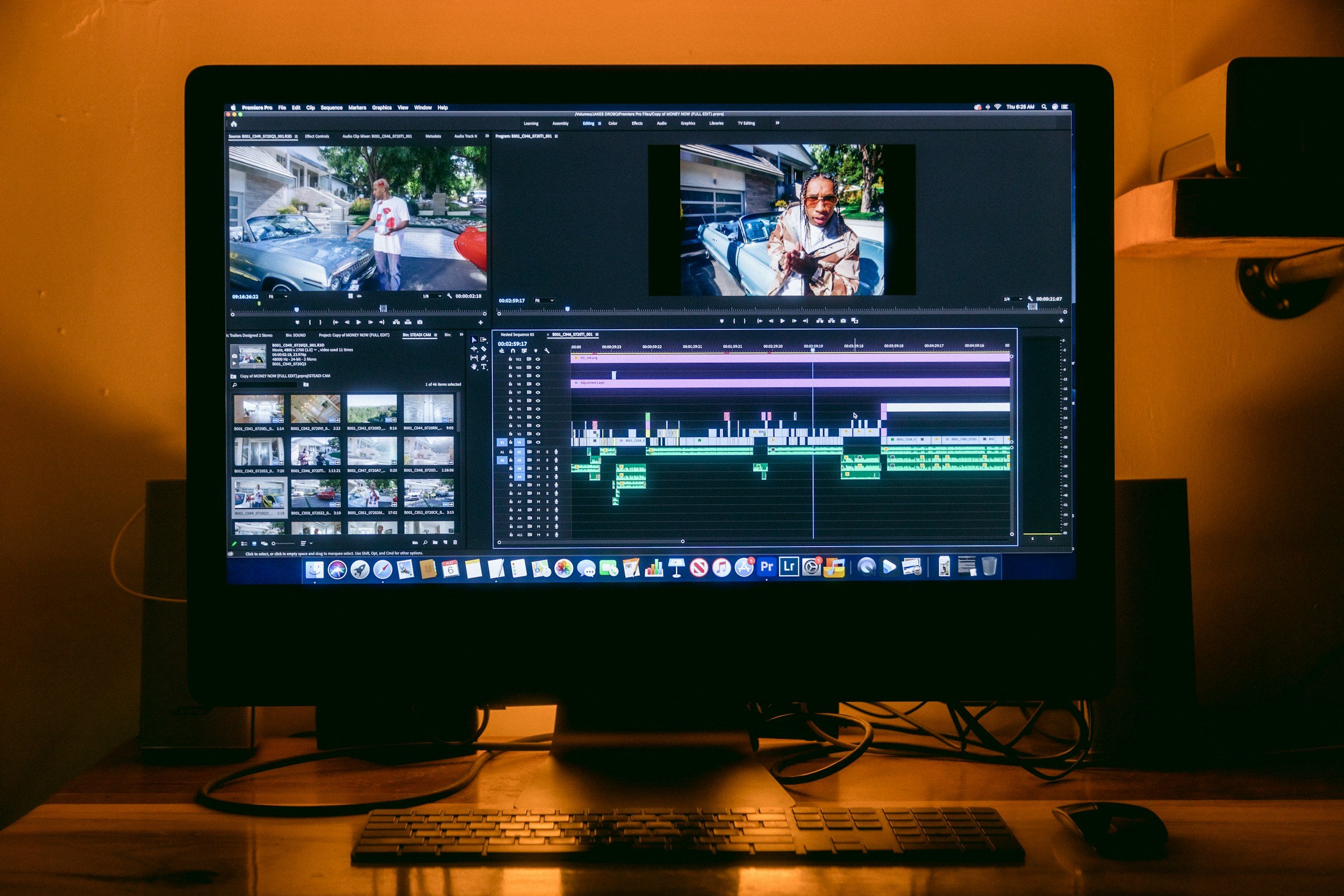
You do not need fancy editing software or a professional microphone to make great client videos. The best tool is the one that lets you hit record and share within two minutes.
Here are free (or almost free) tools I've actually used to make my own workflow smoother:
Loom: This is a go-to for many freelancers that is quick and provides no-fuss screen recordings. Hit record, talk it through, done. It captures your screen, your voice, and your face if you want it to! Then instantly gives you a link to send. No faffing about with downloads or uploads.
Riverside: More of a step up when you want proper quality without overcomplicating things. It records in high resolution locally (so no dodgy internet ruining it), and gives you separate audio and video tracks. This can be great if you want to tidy things up or reuse content later.
Descript: All-in-one recording and editing. You can record your screen and webcam directly, then edit the video by editing the transcript. It also removes filler words, lets you rearrange clips easily, and turns editing into something far less painful than it has any right to be.
Both Riverside and Descript have AI features to help you in your editing
Step 2: Prepare Before You Press Record
The secret to creating client training videos that actually make sense is a tiny bit of preparation. You don't need a full script, but a loose outline prevents you from rambling.
Clear your desktop: Close any tabs containing private data or any client personal information, so it can’t be seen in the background.
Know your goal: Get clear why you are recording the short video in the first place.”
Do a quick audio check: You don't need a studio microphone, but using a standard headset mic or ensuring you are in a quiet room makes a world of difference.
Step 3: Keep It Short and Specific

Your clients are just as busy as you are. They do not want to watch a 20-minute epic film about their software settings.
Aim to keep your videos under three to five minutes. If a process is longer than that, break it down into a mini-series of bite-sized videos.
"How to use your new website," send three short videos:
Video 1: How to log in and change your password
Video 2: How to edit text on the homepage
Video 3: How to view your contact form submissions
This approach makes your business organisation clean and allows clients to jump straight to the exact solution they need later on.
Step 4: How to Share Video Tutorials Securely
Once you’ve hit stop, the next job is getting it to your client without overthinking it.
If you’re using Loom, Riverside, or Descript: you’re already halfway there. All three generate a shareable link once your recording is done. Just copy it and drop it into an email, Slack, WhatsApp, or your project tool of choice.
If you’ve downloaded the file instead (or exported from Riverside or Descript for extra editing): It is better to upload it to a shared folder in Google Drive or Dropbox. Then send the folder link rather than attaching the video directly, because there are usually limits to email file sizes.
Top tip: always check sharing settings. You want “anyone with the link can view” switched on — not “please request access”
Create a "Client Video Library" for Long-Term Success
If you find yourself recording the exact same tutorial for three different clients, then the obvious solution is to turn that video into an asset, that will help you into the future.
Instead of recording a fresh video every time, just record a generic (don’t mention any names or information that fits just one client.) and save it to a master folder in your cloud storage. Label it clearly, such as “Standard Training - How to Approve Canva Proofs.”
The next time any of your client needs that training, you can grab the link in seconds. This simple way of communicating without needing to be “on” at the same time saves you hours over the year, freeing you up to focus on the work that actually grows your business instead of answering the same questions over and over again.
Focus on progress, not perfection.

It is completely normal to feel a bit awkward the first few times you record your voice. You might stumble over a word, or your cat might meow in the background. You might even hate your accent, like me.
Don't delete the video and start over! Clients appreciate authenticity. They don't need Hollywood production value; they just want to know how to complete their task.
A helpful, imperfect two-minute video is always better than a perfectly polished email that takes you an hour to write.
Need a Hand Taming Your Business Chaos?
Setting up systems, organising client portals, and managing content creation can feel like a full-time job on top of your actual client work. If you are feeling overwhelmed trying to manage it all alone, you don't have to.
A virtual assistant can help your business and I help freelancers, creatives, and small business owners streamline their workflows, handle their digital marketing, and set up stress-free systems.
Click here to book a friendly chat today and let’s talk about how we can get your business running like a well-oiled machine, leaving you free to focus on what you love most.
